
Bulk Adding Sync Rules with a CSV File
Create many sync rules at once by uploading a CSV file. Covers the file format, reviewing and editing rules before they are saved, and what to do with rejected rules.
If you have many bundles to set up, you can create all their sync rules in one go by uploading a CSV file instead of adding each rule by hand. If you are new to sync rules, read How to create Sync Rules first to see how a Base SKU and its Child SKUs work.
Open Bulk Add
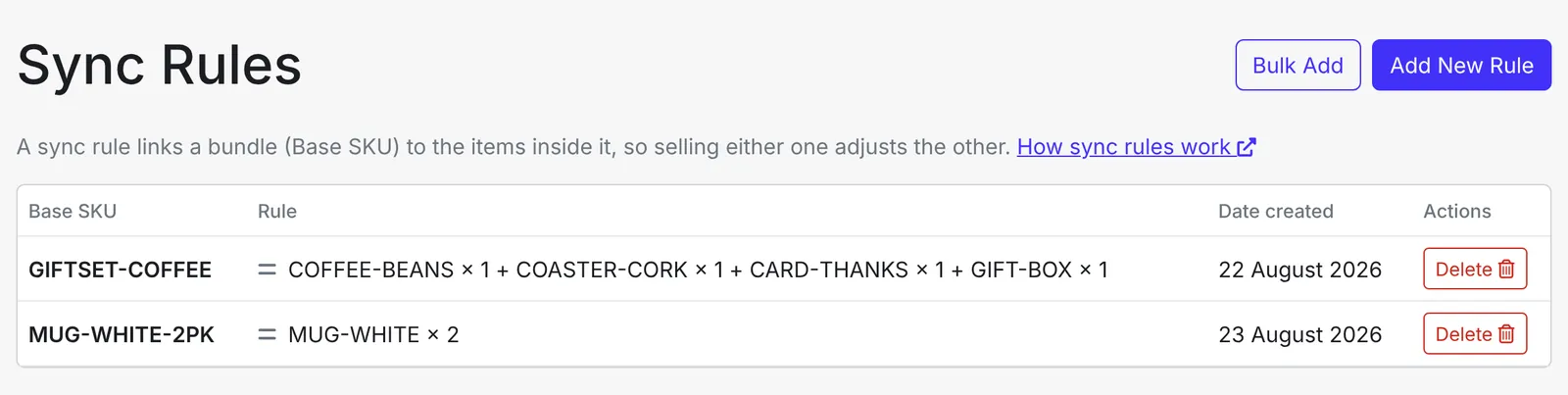
Go to the Sync Rules tab in the left-hand menu and click Bulk Add at the top right.
Prepare your CSV file
Click Download Sample CSV to get a template with the correct column names. Fill it in with a spreadsheet app such as Excel or Google Sheets, then save it as a CSV file.
Each row is one rule. The first column is the Base SKU (the bundle), followed by pairs of Child SKU and multiplier columns:
baseSKU,childSKU1,multiplier1,childSKU2,multiplier2,childSKU3,multiplier3
CANDLE-DUO,CANDLE-VANILLA,1,CANDLE-ROSE,1,,
MUG-TRIO,MUG-WHITE,1,MUG-BLACK,1,MUG-RED,1
In this example, one CANDLE-DUO is made of 1 CANDLE-VANILLA and 1 CANDLE-ROSE, and one MUG-TRIO is made of one mug in each of three colours. The candle duo has only two components, so its third pair is left empty.
Keep these rules in mind when filling in the file:
- Keep the column names exactly as they are in the sample.
- A rule can have up to 10 Child SKUs, and a file can hold up to 1,000 rules.
- Every Child SKU needs a multiplier, and it must be a whole number from 1 to 999.
- Each Base SKU can only appear once in the file, and it cannot already be the Base SKU of an existing rule.
- Every SKU must already be in EMMA, spelled exactly as it is on your sales channels.
Upload the file
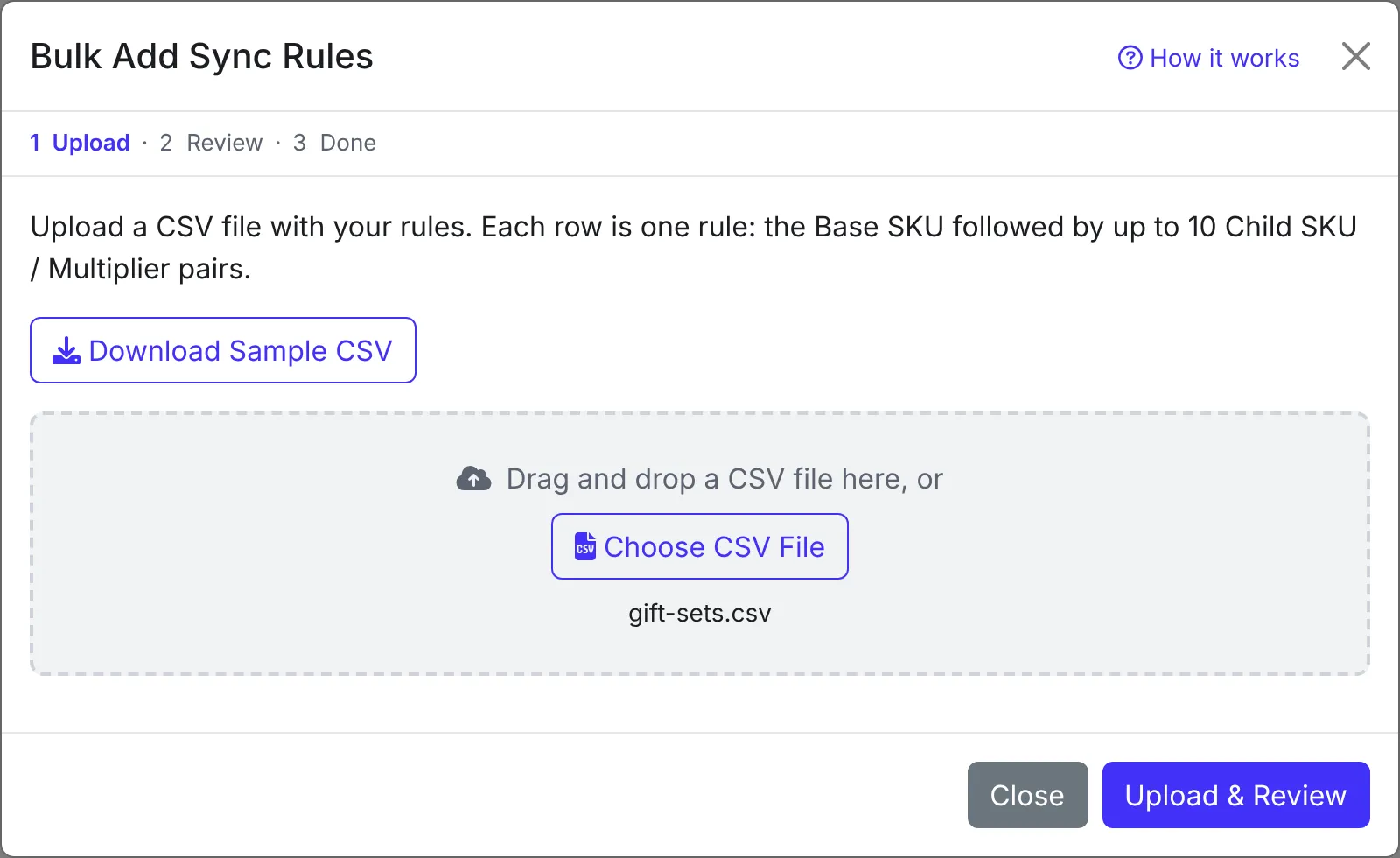
Click Choose CSV File, or drag your file onto the box, then click Upload & Review.
If the file has formatting problems, such as a missing multiplier or a wrong column name, EMMA lists each problem with its row and column number. Nothing is created from a file with formatting problems. Fix the file and upload it again.
Review and edit your rules
Once the file is read, every rule is shown for you to check before anything is saved. You can edit any SKU or multiplier, add or remove components with Add Component and the bin icons, remove a whole rule, or add one more with Add Rule.
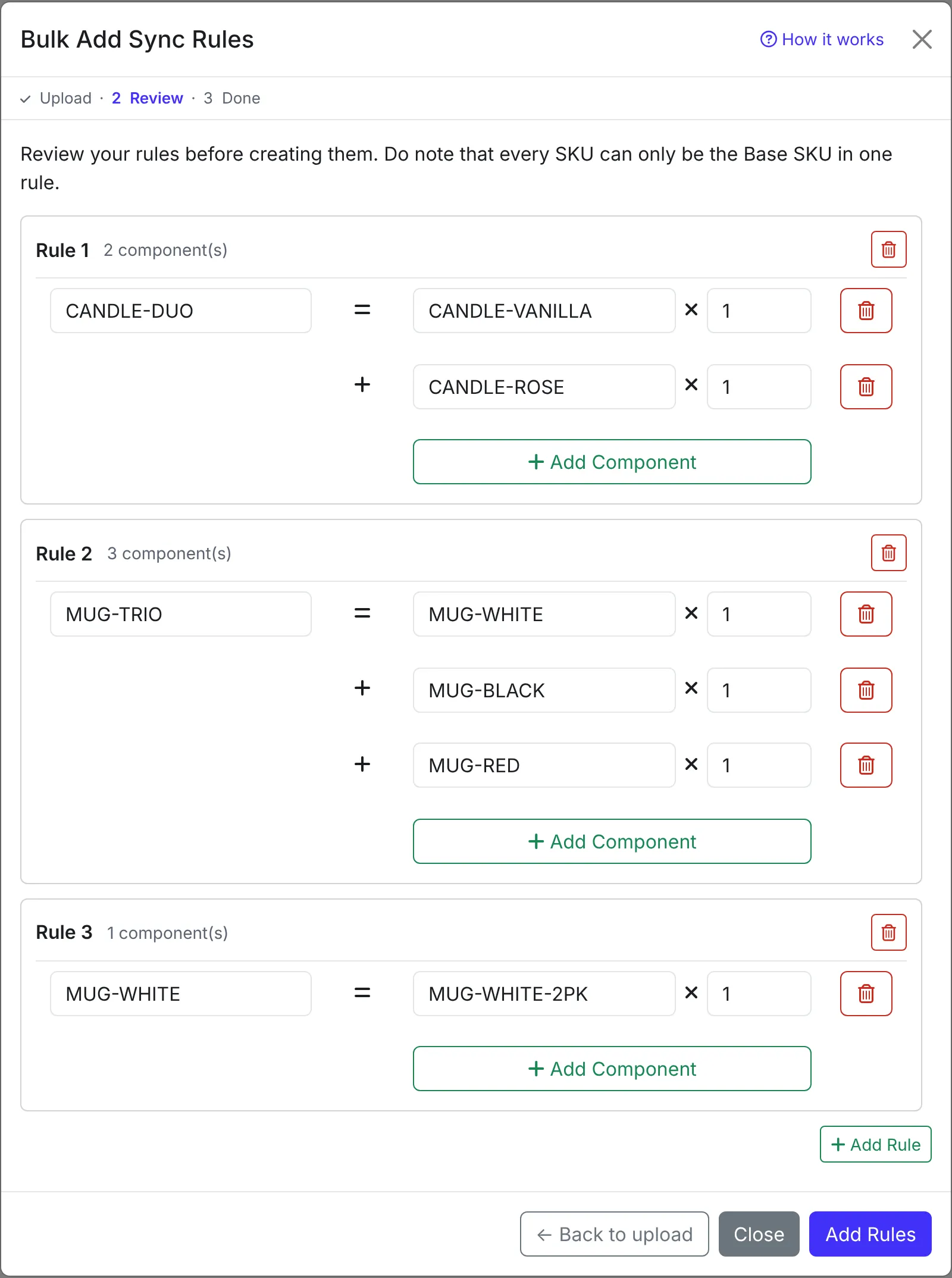
EMMA checks the rules as you edit. A SKU that is not in EMMA, a duplicate Child SKU, or a Base SKU that is already used in another rule is marked in red with the reason underneath. Add Rules stays disabled until every problem is fixed.
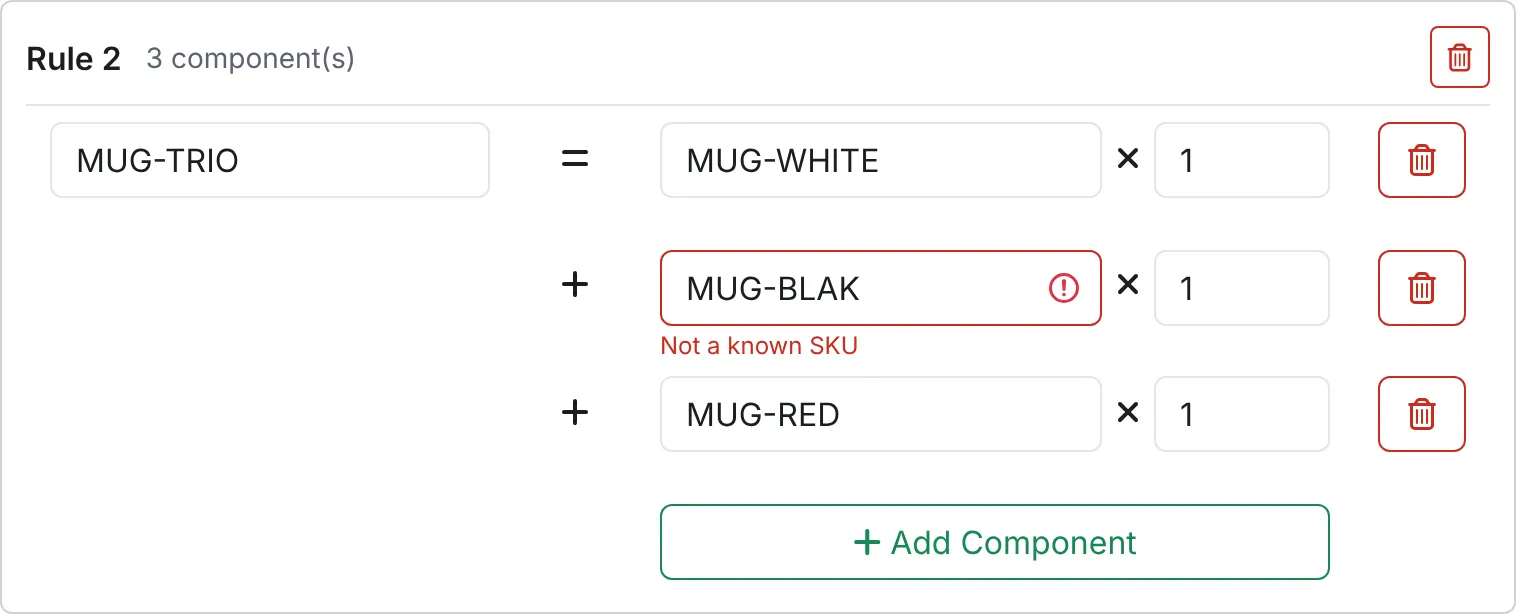
When everything looks right, click Add Rules.
Check the results
EMMA shows which rules were created and which were rejected, with the reason for each rejection. A rule that would create a circular dependency with your existing rules (a bundle that ends up containing itself) is rejected, while the other rules are still created. In the screenshot below, the rule for MUG-WHITE is rejected because it would contain the white mug twin pack, and the twin pack already contains MUG-WHITE.
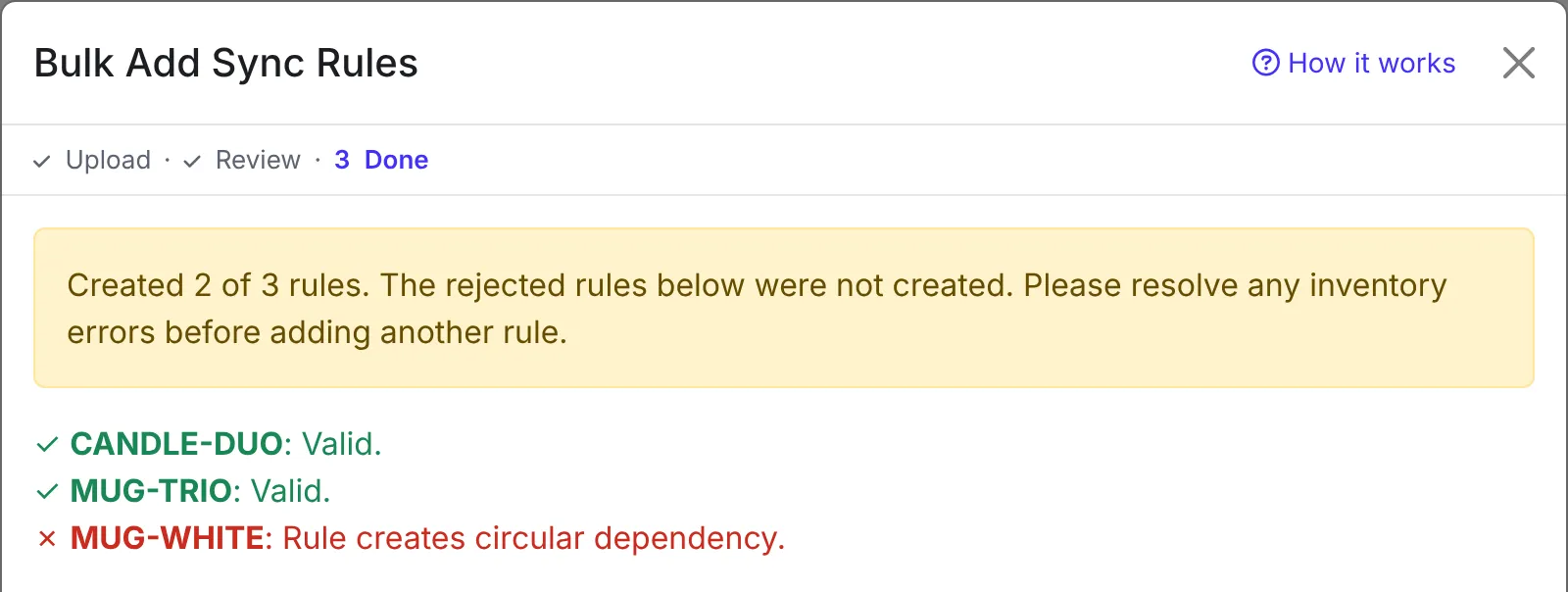
Rejected rules are not saved. You can fix them and upload them again in a new file, or add them one at a time with Add New Rule.
Click Done to return to the Sync Rules page, then go to the Inventory Overview page. As with rules you add by hand, if the stock numbers of your new bundles do not match their components, a chip such as 1 sync rule error appears under the page title. Click it and enter the correct quantities before adding more rules.