
Bulk Updating Stock with a CSV File
Update the stock of many SKUs at once by uploading a CSV file. Covers the file format, reviewing changes and sync rule suggestions, the required reason, and checking the results.
If you have a stocktake or a batch of restocked items to enter, you can update many SKUs at once by uploading a CSV file instead of updating each one by hand on the Inventory Overview page.
Open Bulk Update
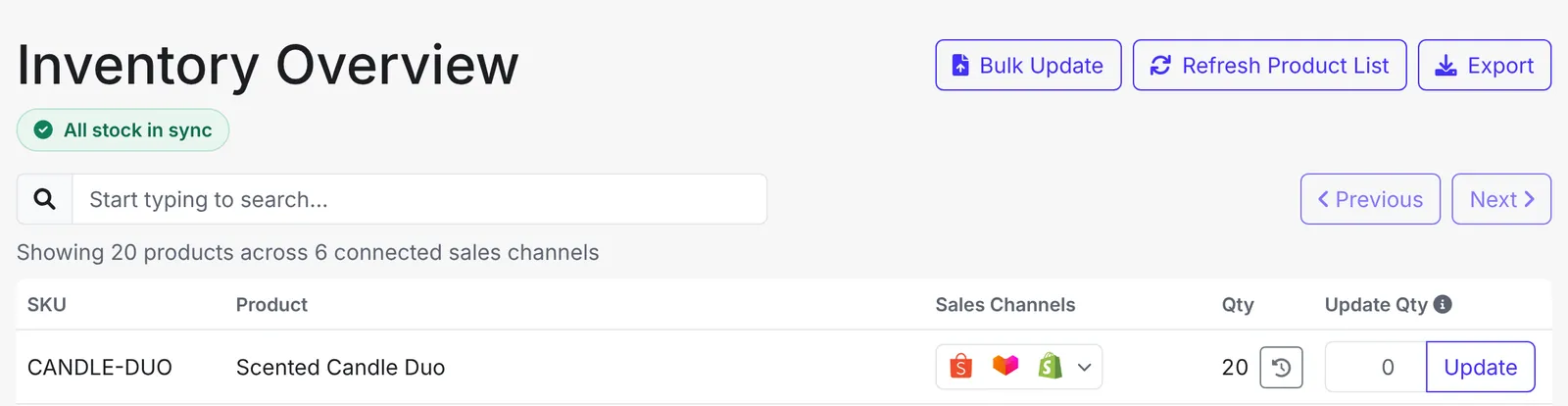
Go to the Inventory Overview tab in the left-hand menu and click Bulk Update at the top right.
Prepare your CSV file
Click Download Sample CSV to get a template, or use a sheet you already keep. The file needs a SKU column and a quantity column, which can be named quantity, qty or stock. Any other columns are ignored, so you can add a quantity column to an existing stock sheet without removing the rest.
SKU,quantity
GIFTSET-COFFEE,60
MUG-WHITE,80
Keep these rules in mind:
- The header row is required. Column names are matched in any letter case, and spaces, underscores and hyphens in them are ignored. A file with more than one quantity column is rejected.
- A file can hold up to 1,000 rows.
- Each SKU can only appear once in the file.
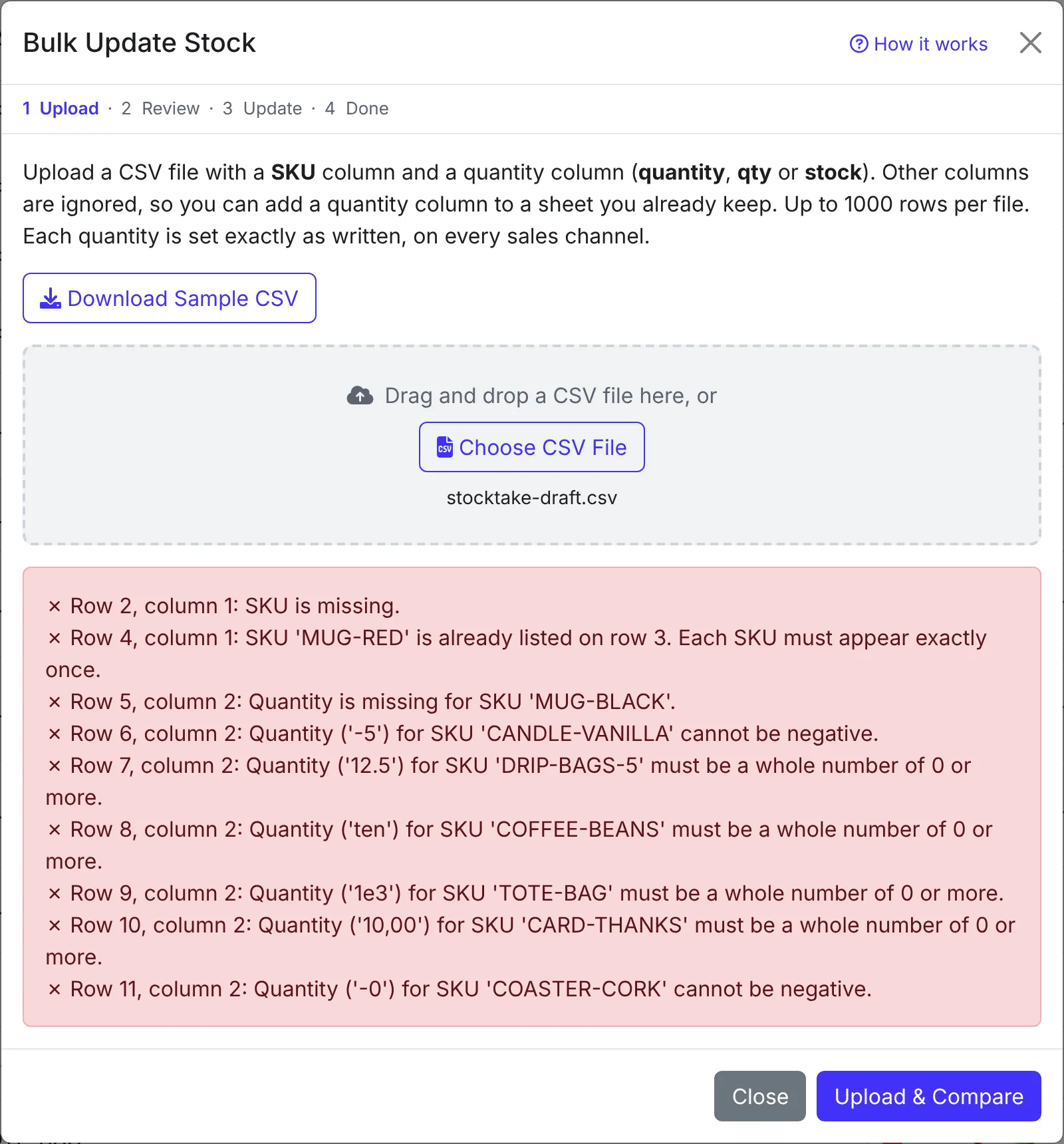
- Quantity must be a whole number of 0 or more. Decimals like
12.5, negative numbers, and text are rejected. - A row where both SKU and quantity are blank is skipped, so section headings or notes in your own sheet do not cause an error.
- Each quantity is set exactly as written, on every sales channel that SKU is listed on.
Upload the file
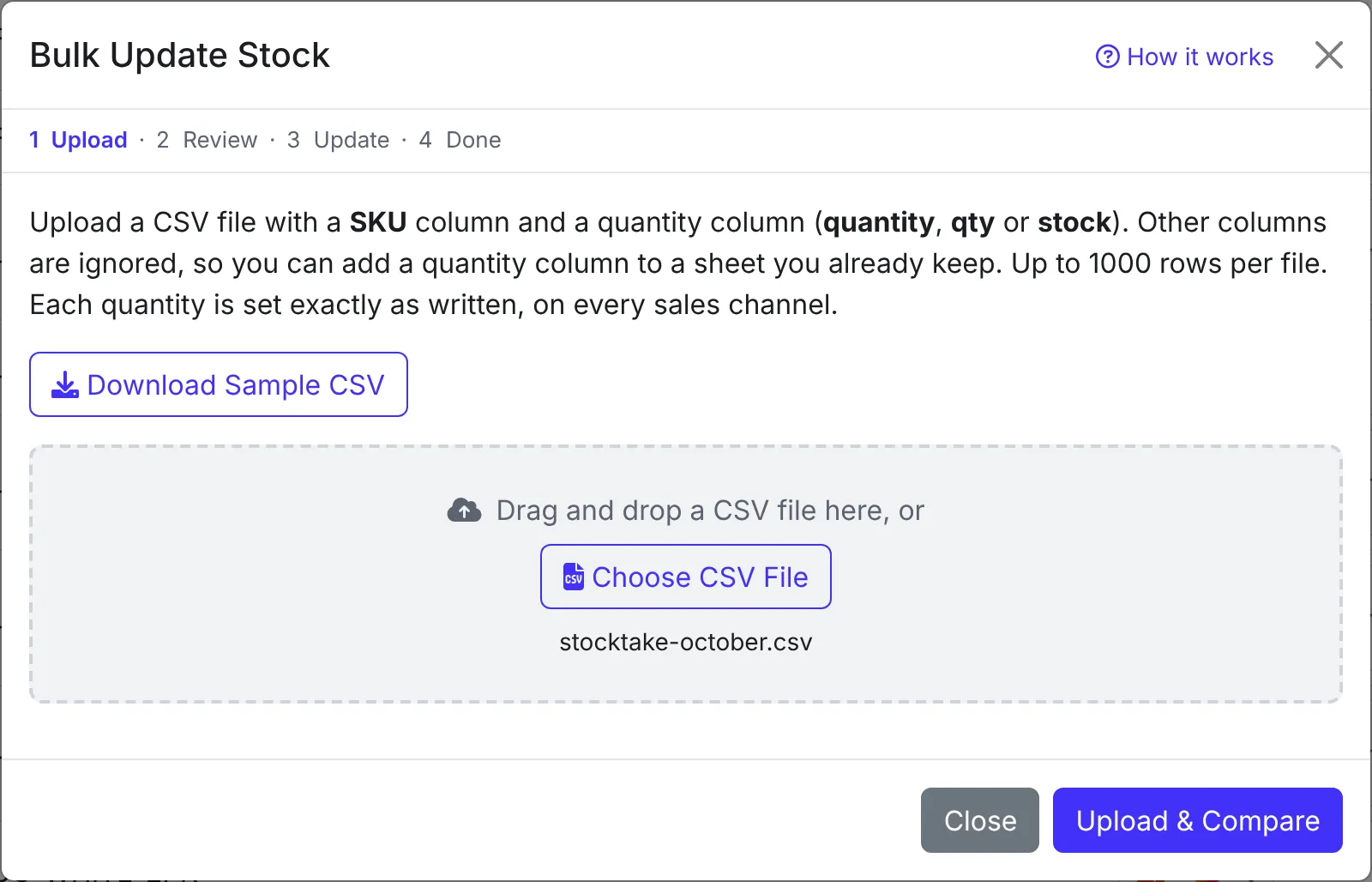
Click Choose CSV File, or drag your file onto the box, then click Upload & Compare. The steps across the top of the window show where you are: Upload, Review, Update and Done.
If the file has formatting problems, EMMA lists every problem with its row and column number and rejects the whole file. Nothing is changed until the file passes these checks.
Review the changes
Once the file is read, EMMA compares it against your current stock and shows every row that needs review:
- Rows from your CSV whose quantity is different from what EMMA has now, or whose sales channels already disagree with each other.
- Rows suggested by your sync rules for SKUs that were not in your CSV. If a bundle’s quantity changes, EMMA suggests matching quantities for its components (and the other way round), so a bundle and its parts do not fall out of step. Suggested rows are ticked by default. Untick any you do not want to change.
- Conflicts, where a suggested quantity from your sync rules disagrees with a quantity your CSV set directly. The row keeps the value you set, with a button to use the suggested value instead.
SKUs in your CSV that are not in EMMA are listed separately and skipped.
In the example below, the file raises the Coffee Gift Set (GIFTSET-COFFEE) from 57 to 60, so EMMA suggests adding 3 to each of its four components. The file also lowers the white mugs to 80, so EMMA suggests 40 for the twin pack of white mugs (MUG-WHITE-2PK).
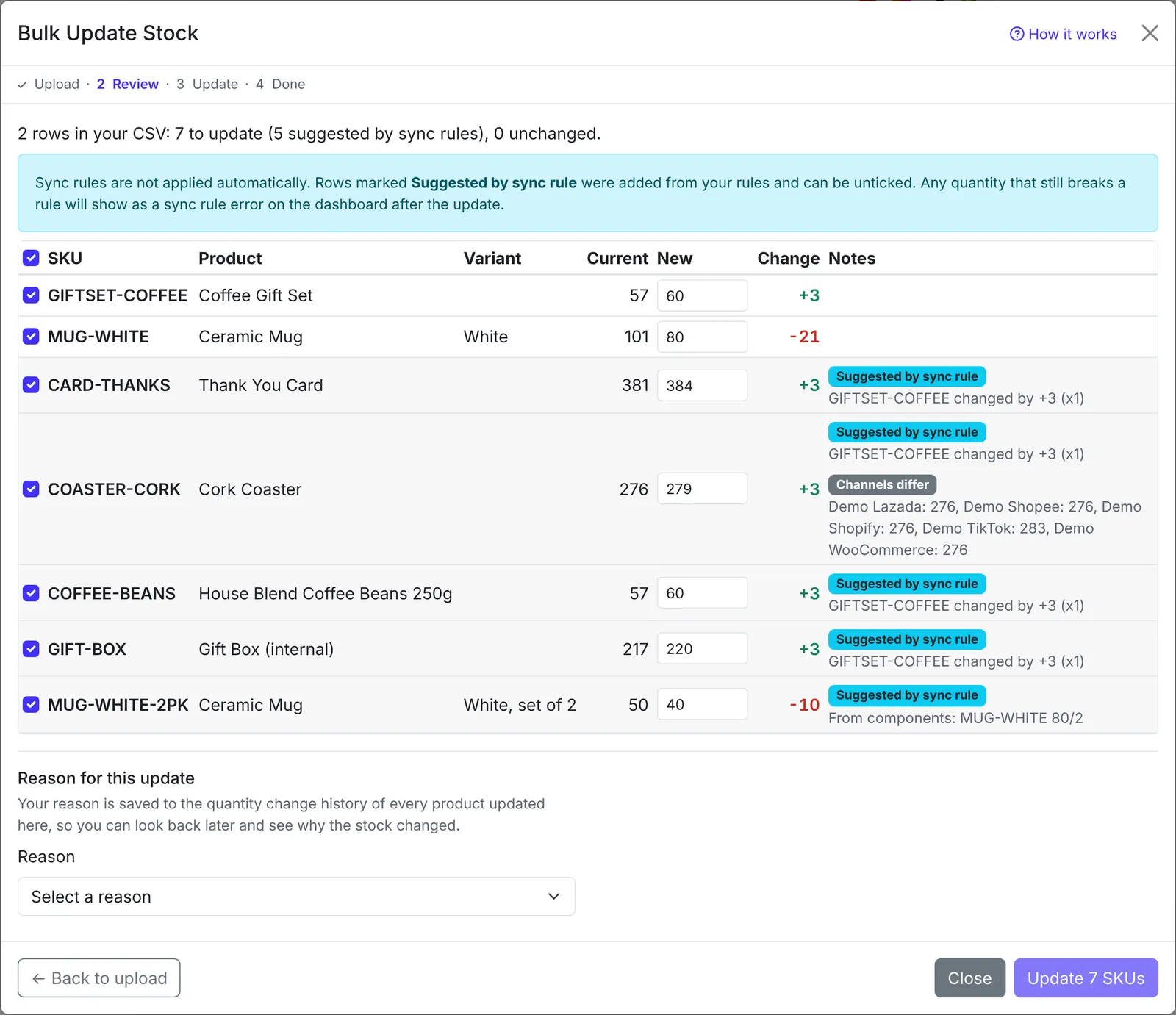
You can edit any quantity, untick a row to leave it unchanged, or use Select all to include or exclude everything at once.
Add a reason and commit
Before you can update anything, pick a reason for the change from the Reason for this update picker, for example Restock / stock received, New order or Stocktake correction. The reason is saved with every quantity change in the upload. The Update N SKUs button stays disabled until a valid reason is picked.
A bulk update always asks for a reason, even if the account owner has turned off Require a reason for stock adjustments in Settings. That setting only affects stock you change one SKU at a time.
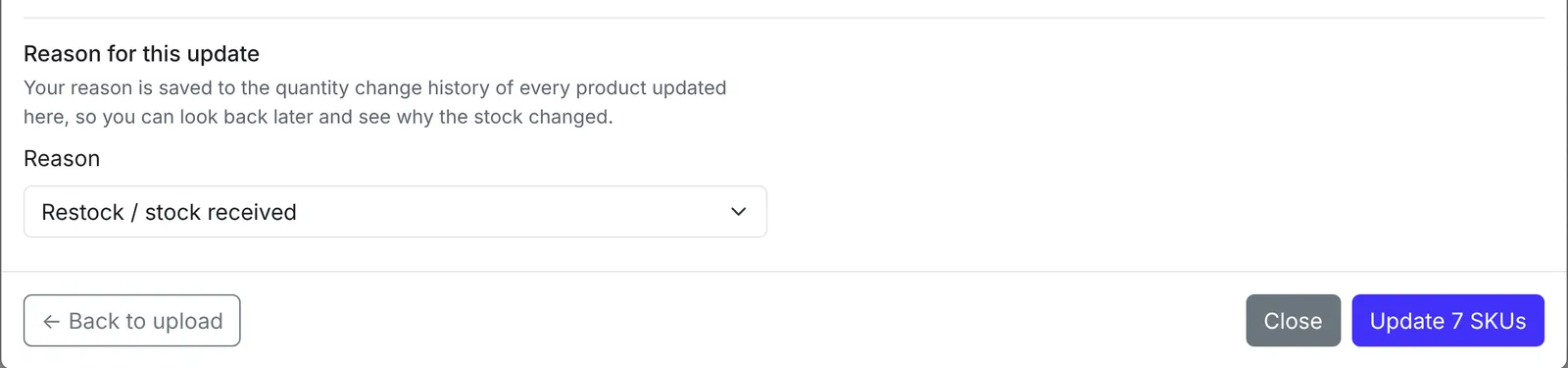
Clicking the update button shows a short confirmation naming the reason and the number of SKUs before anything is written.

Large updates are sent to EMMA in small batches, so keep the window open until it finishes. Sync rules are not applied automatically during the write, only the exact quantities you reviewed.
Check the results
EMMA shows which SKUs were updated, skipped, or failed, with a reason for each. A SKU is skipped if its quantity changed since you uploaded the file, for example because of a new order. Re-upload the file to review it again with the current numbers.
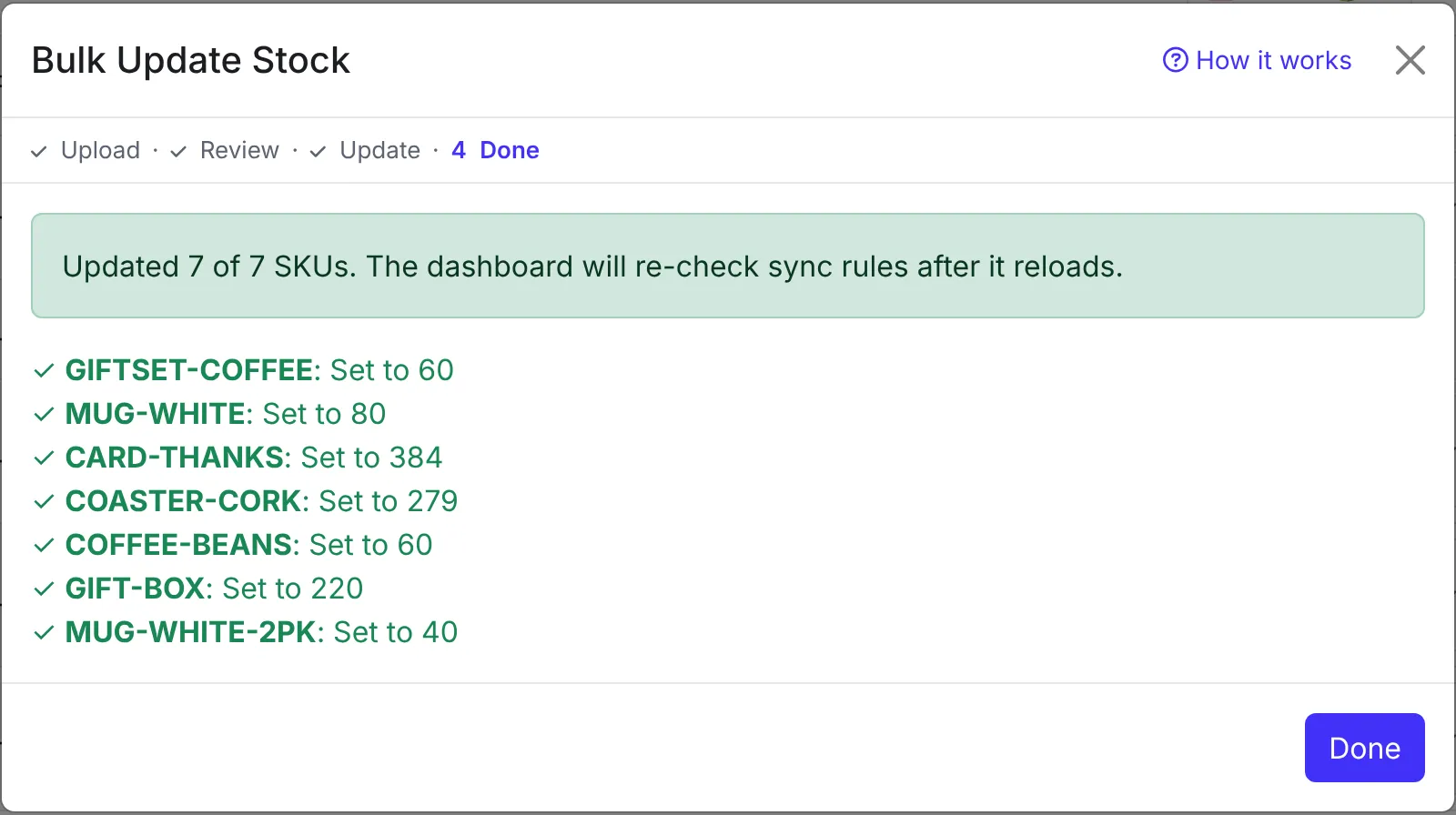
After an update, EMMA re-checks your sync rules once the dashboard reloads. If a quantity still breaks a rule, it shows up as a sync rule error the same way a manual edit would.
Verify the change
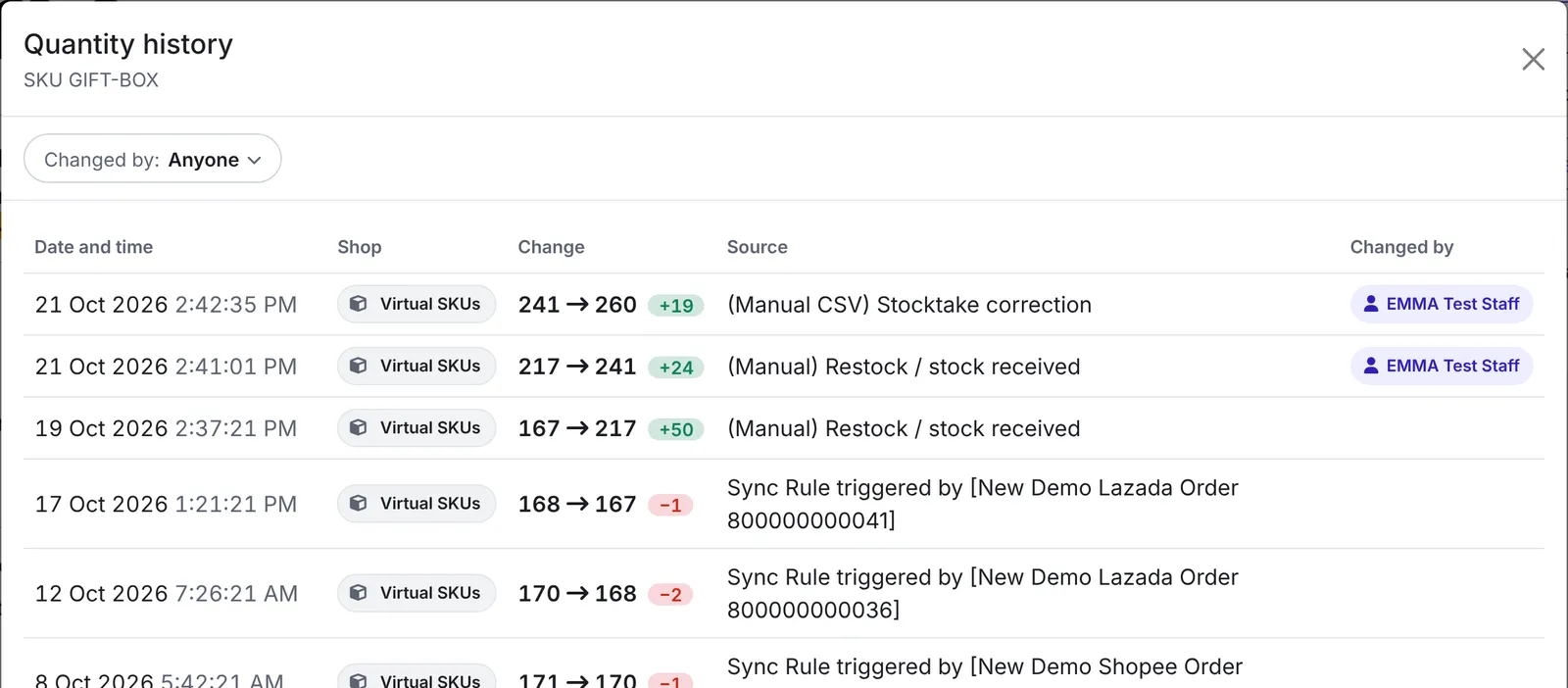
To confirm a quantity was updated correctly, open the SKU’s quantity history (the clock icon next to its quantity on Inventory Overview). It lists every change on every shop the SKU is sold on. The source for a bulk update reads “(Manual CSV) <reason>”, for example “(Manual CSV) Stocktake correction”, so you can always see that a change came from a CSV upload and why. The Changed by column shows who uploaded it, which helps when your team has their own logins.
If you have many bundles to set up rather than stock to update, see Bulk adding sync rules with a CSV file instead.