
Ignoring Archived Shopify Products
Stop EMMA importing and syncing products you have archived on Shopify, and what happens to archived products already in EMMA when you turn it on.
When you stop selling a product on Shopify, you might archive it instead of deleting it. By default, EMMA still imports archived products like any other, so an old archived product can keep its stock in sync, or show up as a duplicate SKU against a newer listing. You can tell EMMA to skip archived products instead.
Turn it on
This is a setting on your Shopify channel, so only the account owner can change it.
- Go to the Sales Channels tab in the left-hand menu.
- On your Shopify channel’s card, click Configure to open Shopify Settings.
- Under Archived products, turn on Ignore archived products.
- Click Save.
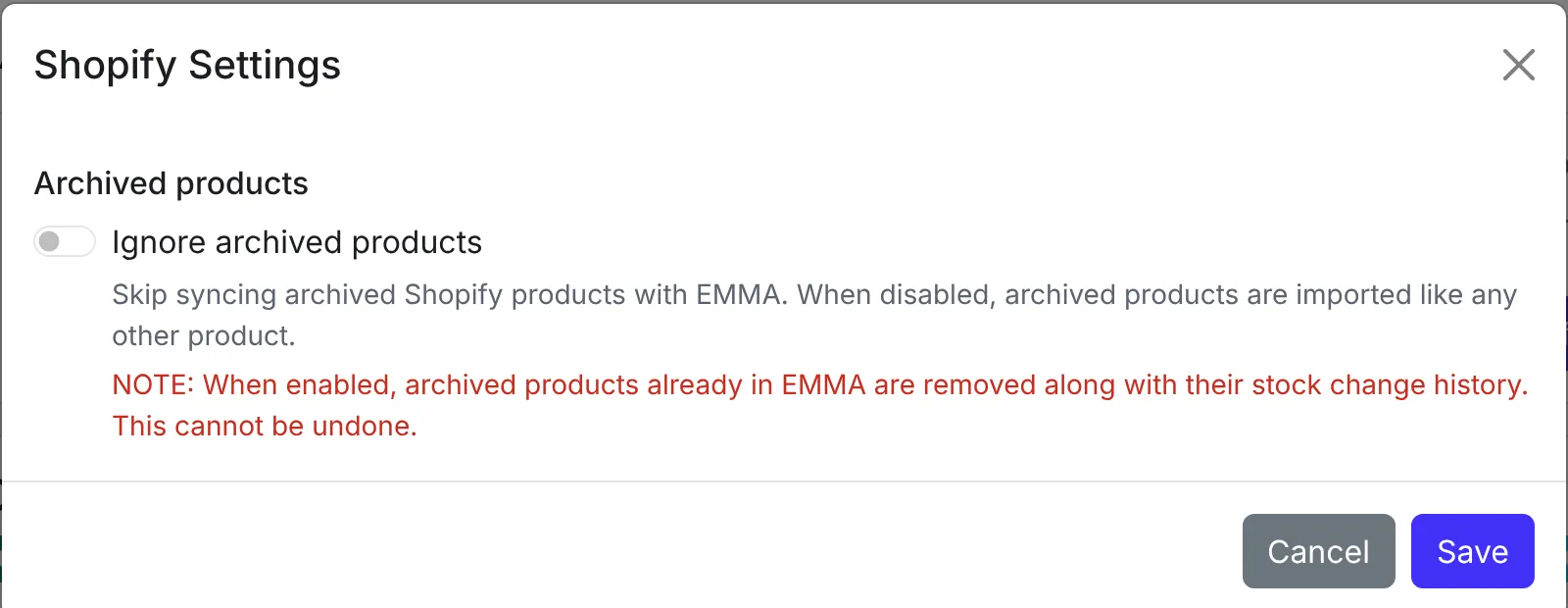
If you are connecting Shopify for the first time, the same switch is in the window that asks you to choose your inventory location.
What happens next
From the next product refresh, which runs automatically every day at 3AM or when you click Refresh Product List, EMMA skips any product whose status on Shopify is Archived. Its stock is no longer read or updated, and it no longer counts towards SKU errors.
At that refresh, archived products that are already in EMMA are removed, along with their quantity change history. This cannot be undone. If you might need a product’s history later, export it first with Export on the Inventory Overview page.
If you unarchive a product on Shopify, EMMA imports it again on the next refresh. Its earlier history does not come back.
To import archived products again, turn the switch off and save.
Other platforms are not affected. A product archived on Shopify but still listed on Shopee or Lazada keeps syncing on those platforms.