
Giving Your Team Their Own EMMA Logins
Invite staff to your EMMA account with their own login and only the access they need. Covers roles, how many logins each plan includes, suspending and removing members, and the activity log.
Your staff can each have their own EMMA login on your account, instead of sharing yours. You choose what each person can see and change, and every change they make is recorded under their name.
Team logins are included in every plan:
| Plan | Logins, including yours |
|---|---|
| Basic | 2 |
| Pro | 4 |
| Advanced | 8 |
During the free trial you get the Advanced plan’s 8 logins. Extra logins cannot be bought separately. To get more, move to a bigger plan. If you need more than 8, contact us.
What stays with you, the owner
The person who signed up for EMMA is the account owner. Only the owner can:
- connect, reconnect and remove sales channels, and manage Virtual SKUs
- change the plan, billing and payment details
- invite, change and remove team members, and read the activity log
- change account-wide settings: whether a reason is required for stock changes, and which channel’s product names EMMA shows
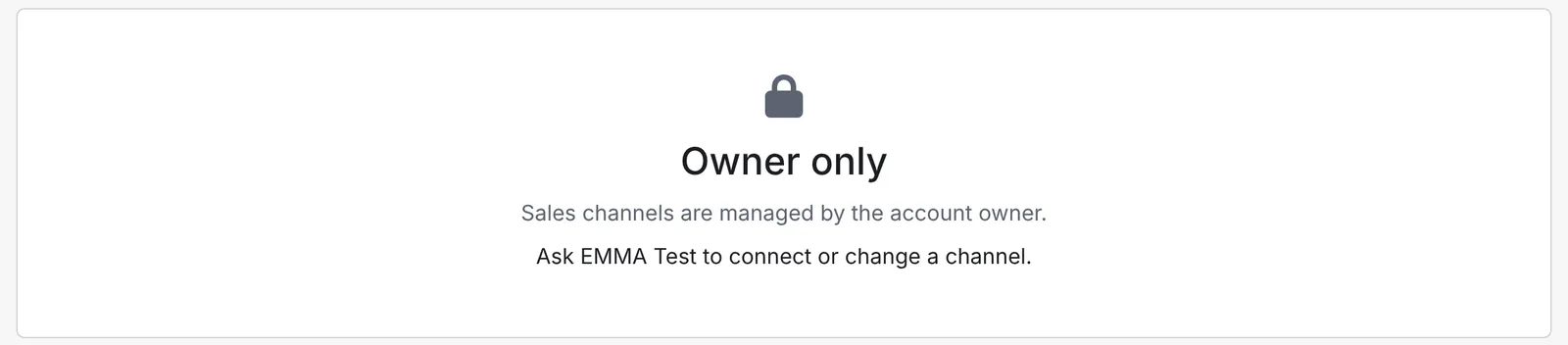
Team members see these areas with a lock and a note to ask you.
Invite a team member
- Go to Settings in the left-hand menu and open the Team Management tab.
- Click Invite team member.
- Enter their Name and Email. The name shows in the activity log and in quantity history beside everything they change.
- Pick a Role, or set the access for each area yourself (see below).
- Click Send invite.
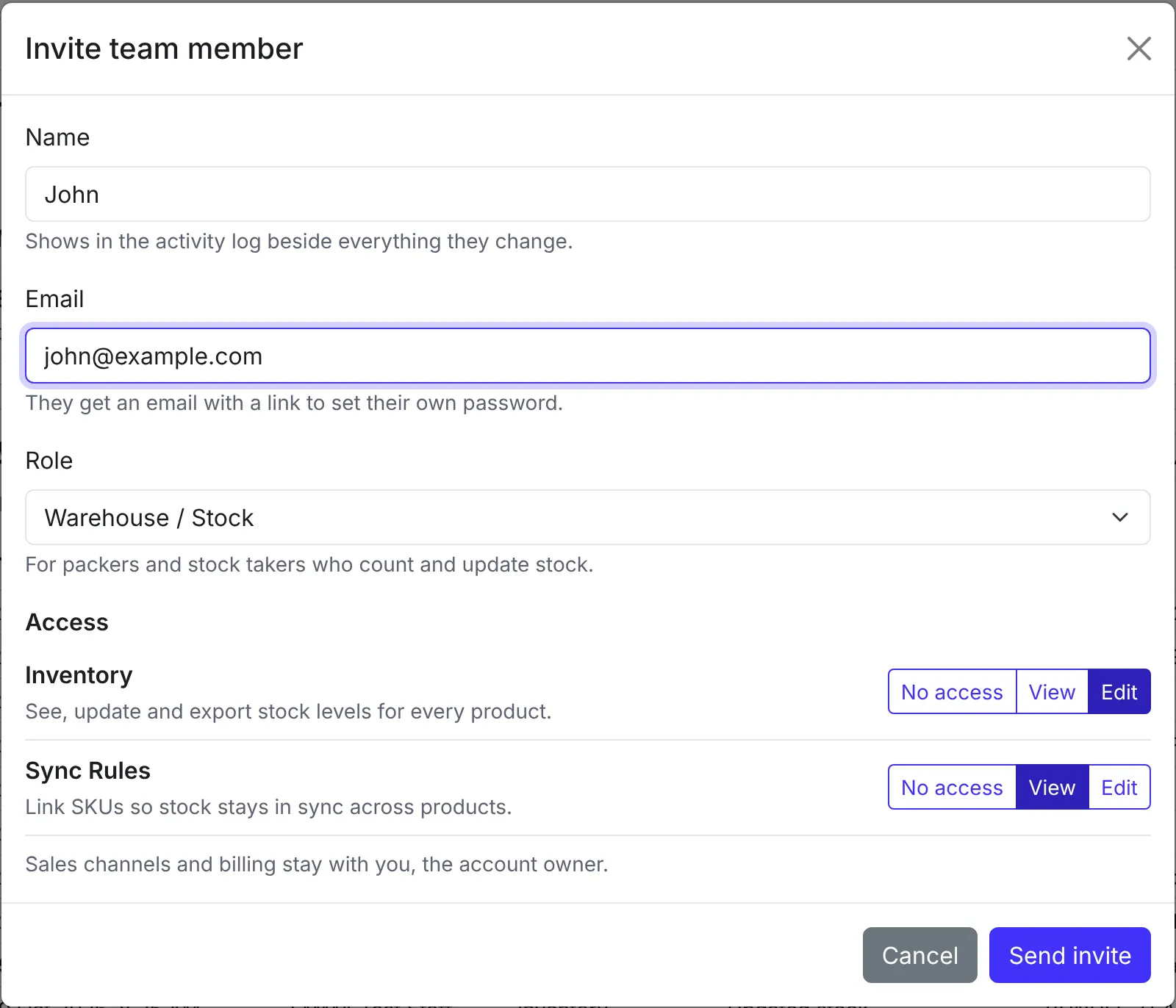
They get an email with a link to set their own password. The link lasts 3 days. Once they have set a password, they log in at app.emma.com.sg with their own email.
Roles and access
Access is set separately for two areas:
- Inventory: see, update and export stock levels for every product. This includes quantity history, bulk updates and the inventory and sales exports.
- Sync Rules: the rules that link bundles to their components.
Each area can be No access, View or Edit. A person with View sees everything in that area but cannot change it. A person with No access sees the tab with a lock.
The roles are shortcuts for the common combinations:
- Manager: Inventory Edit, Sync Rules Edit. For someone who runs the shop with you and manages stock and sync rules.
- Warehouse / Stock: Inventory Edit, Sync Rules View. For packers and stock takers who count and update stock.
- Viewer: Inventory View, Sync Rules View. For anyone who should see everything but change nothing.
If you change the access away from a role’s settings, the role shows as Custom.
Manage your team
The Team card lists everyone you have invited, with their access, status and when they were last active. It also shows how many of your plan’s logins are used.

Each member has these buttons:
- Edit access: change their role or access. The change applies within about a minute.
- Resend invite: for someone who has not set their password yet, or whose invite shows Invite expired. The new link lasts 3 days, and the old one stops working.
- Suspend: logs them out and stops them logging in until you click Reactivate. A suspended member does not use up a login.
- Remove: deletes their login. Their past changes stay in the activity log.
If you move to a smaller plan
If your new plan includes fewer logins than you are using, EMMA suspends the most recently invited members until you are within the limit. The Team card lists who was suspended. When they try to log in, they are told the plan has no free logins. To bring someone back, free up a login by removing or suspending another member, or upgrade, then click Reactivate.
See who changed what
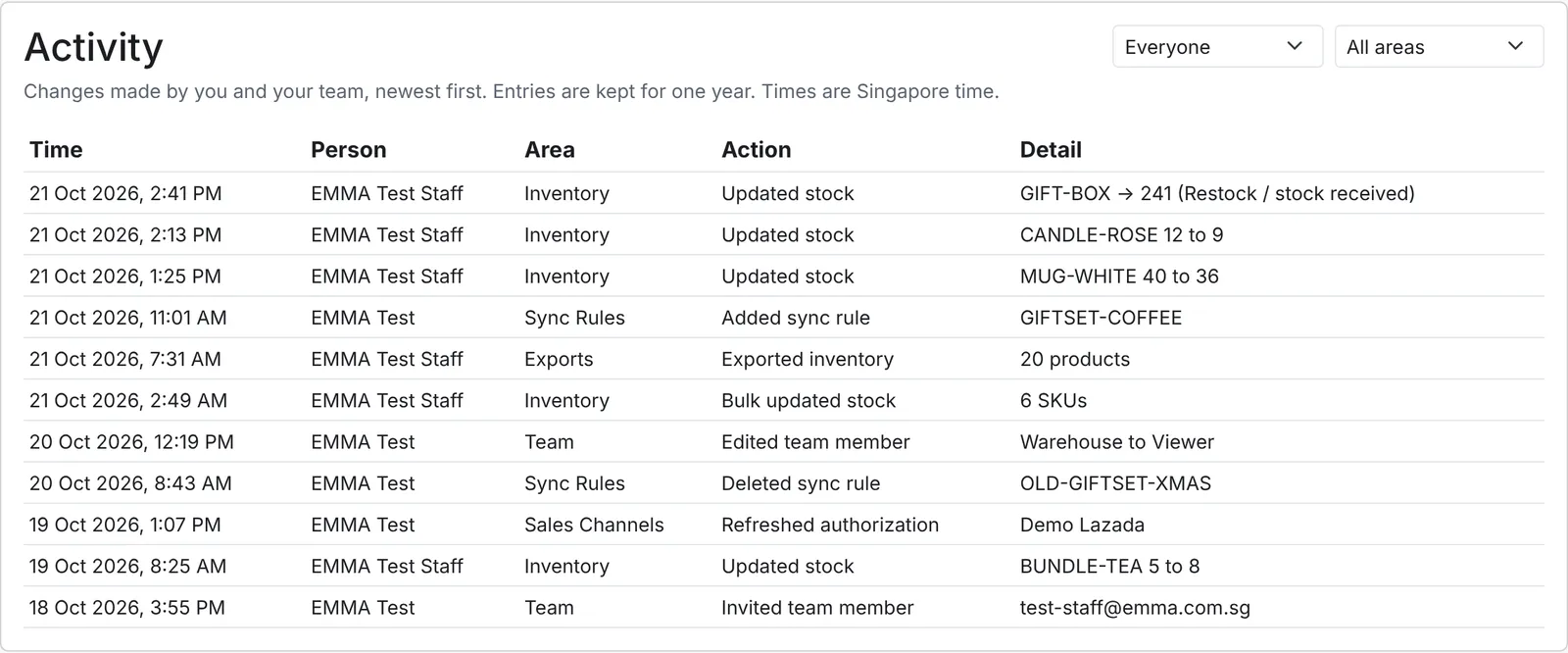
The Activity card, under the Team card, lists the changes made by you and your team, newest first: stock updates, bulk updates, sync rules, exports, sales channel changes and team changes. Filter it by person or by area. Entries are kept for one year, and times are in Singapore time.
Every quantity change also records who made it. Open a SKU’s quantity history (the clock icon next to its quantity on Inventory Overview) and the Changed by column shows the person behind each manual change. Changes from orders and sync rules have no person.
For team members
- Log in at app.emma.com.sg with the email your invite was sent to.
- Forgot your password? Click Forgot your password? on the login page. See changing or resetting your password.
- If an area shows View only, or a tab has a lock, ask the account owner for access.
- If you are told your login is paused, ask the account owner to reactivate it.